Profiles
Different contexts, different rules. Profiles let you customize how Ottex transcribes based on what you're doing.
A lawyer, a developer, and a doctor all use Ottex differently. Profiles let you create personalized setups for every part of your work — so Ottex always gets it right.
What are Profiles?
A Profile is a set of rules that tells Ottex how to behave in a specific context. Each profile can have its own:
- Voice model — choose a different AI model for each context
- Custom instructions — tell Ottex how to format and style your text
- App matching — automatically activate when you switch to specific apps
- Website matching — activate when specific websites are in focus
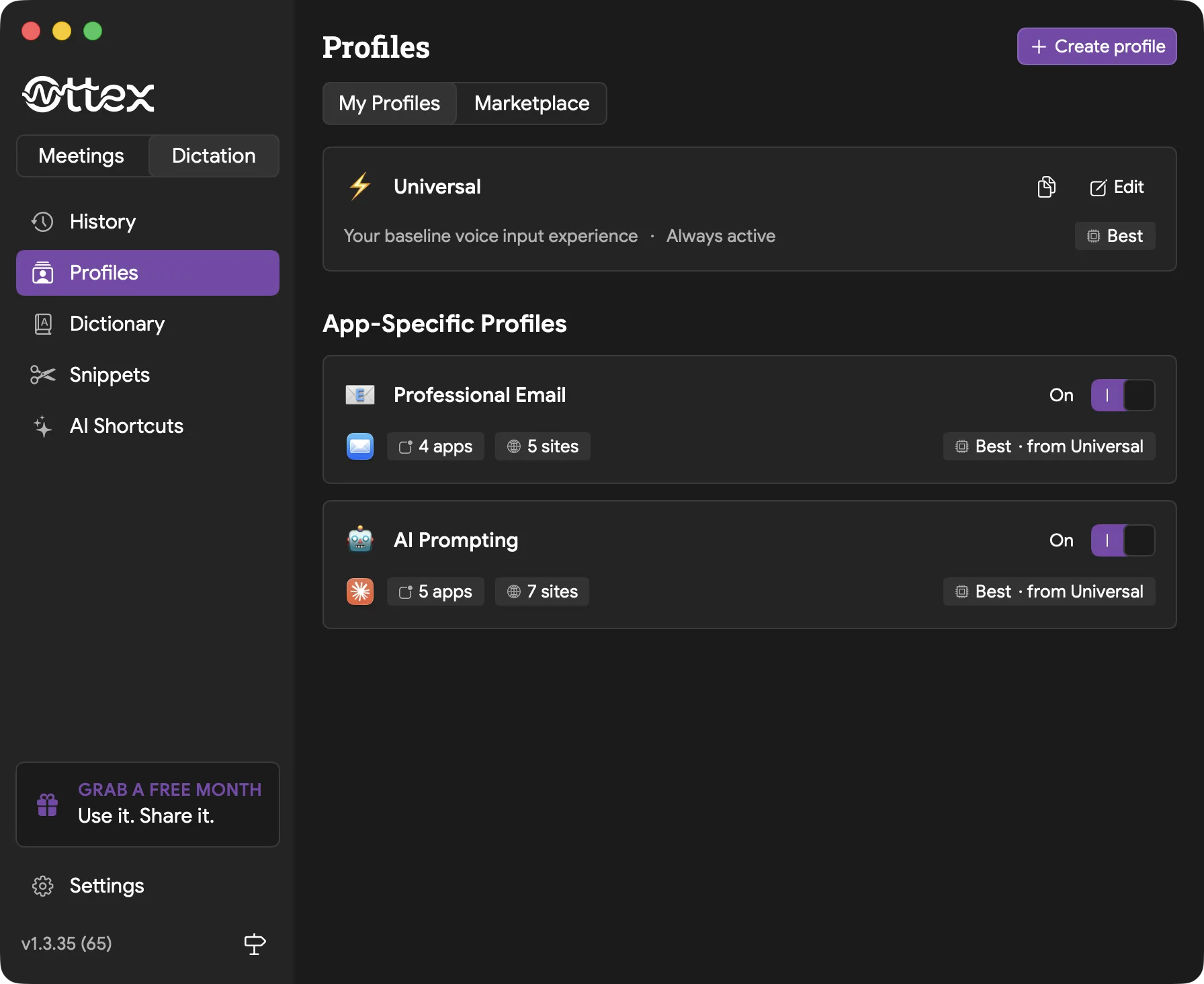
The Default Profile
Every Ottex installation starts with a Default profile. This is the catch-all — it activates whenever no other profile matches the app you're using.
You can customize the Default profile's instructions and voice model, but you can't delete it or assign apps to it (since it already matches everything).
Creating a Profile
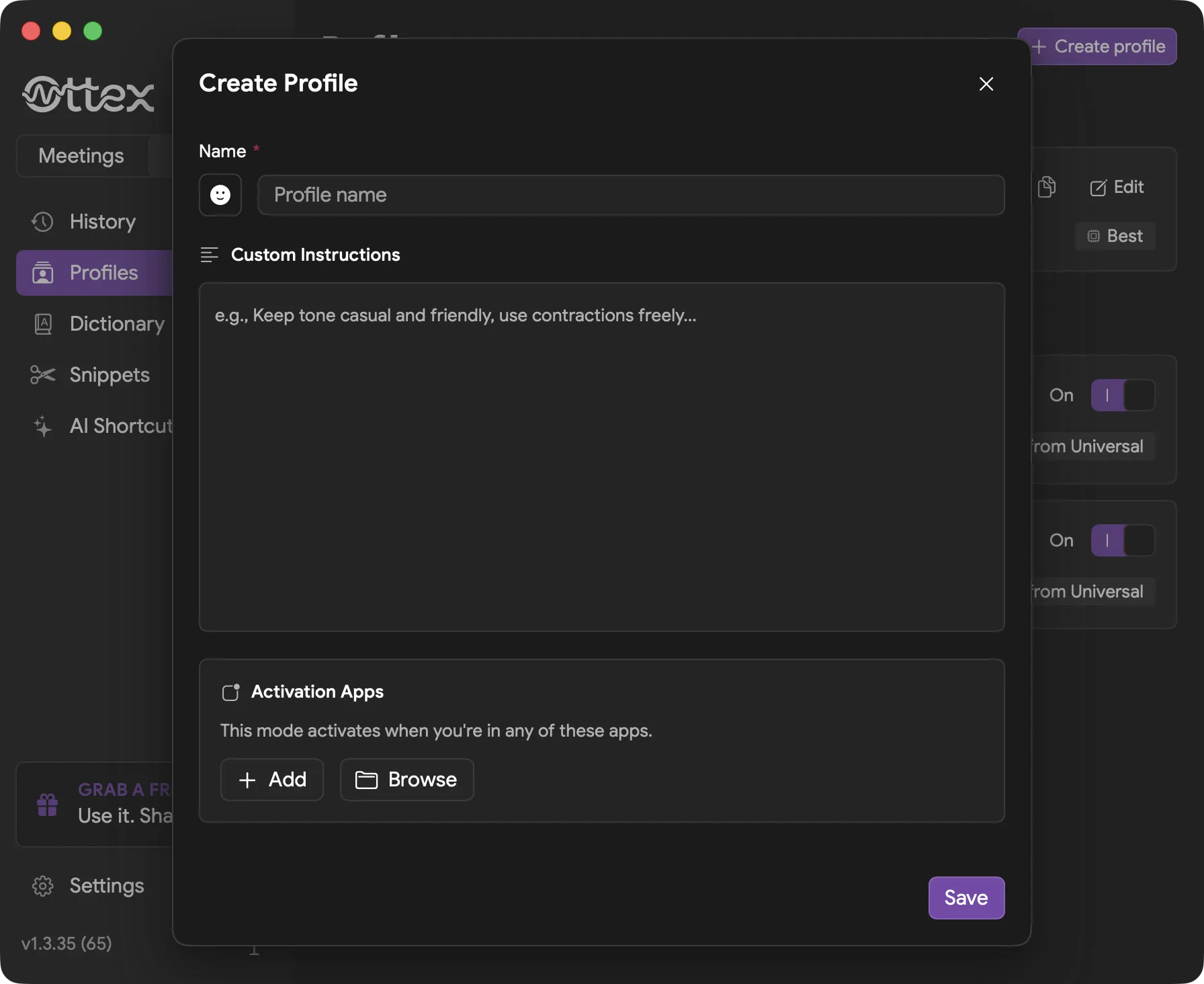
- 1Open Ottex and go to the Profiles section in the sidebar
- 2Click "+ Create profile" in the top right
- 3Give your profile a name (e.g., "Work Messaging", "Coding", "Medical Notes")
- 4Add apps that should trigger this profile — click "Add app" and pick from installed apps
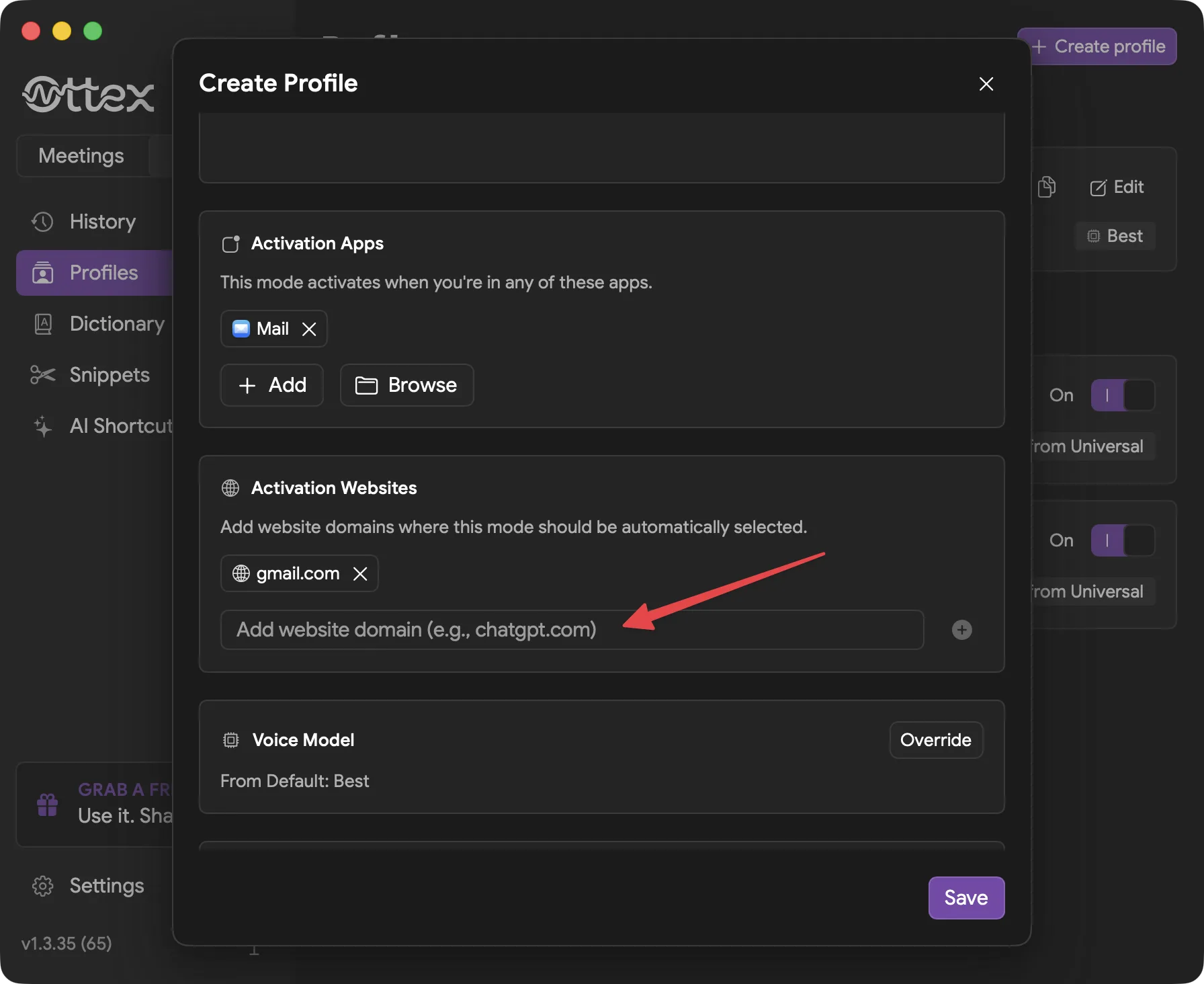
- 5Optionally add websites — enter URLs that should trigger the profile when focused in a browser
- 6Write custom instructions that tell Ottex how to format text for this context
- 7Choose a voice model (or leave it to use the default)
How App Matching Works
When you start dictating, Ottex checks which app is currently in the foreground. If that app is assigned to a profile, that profile's rules apply automatically.
Slack is open
"Work Messaging" profile activates — casual tone, no period at end
VS Code is open
"Coding" profile activates — technical terms, code-aware formatting
Notes app is open
No profile matches — Default profile is used
Website Matching
Profiles can also match based on the website you're viewing in your browser. This is useful when you want different behavior for different web apps — like Gmail vs. GitHub.
Add website URLs to a profile, and when that site is in the active browser tab, the profile activates automatically. Website matching takes priority over app matching when both could apply.
Writing Good Instructions
Instructions tell Ottex how to format your speech for a specific context. Be specific and concrete — the AI follows your instructions literally.
Work Messaging
Coding
Medical Notes
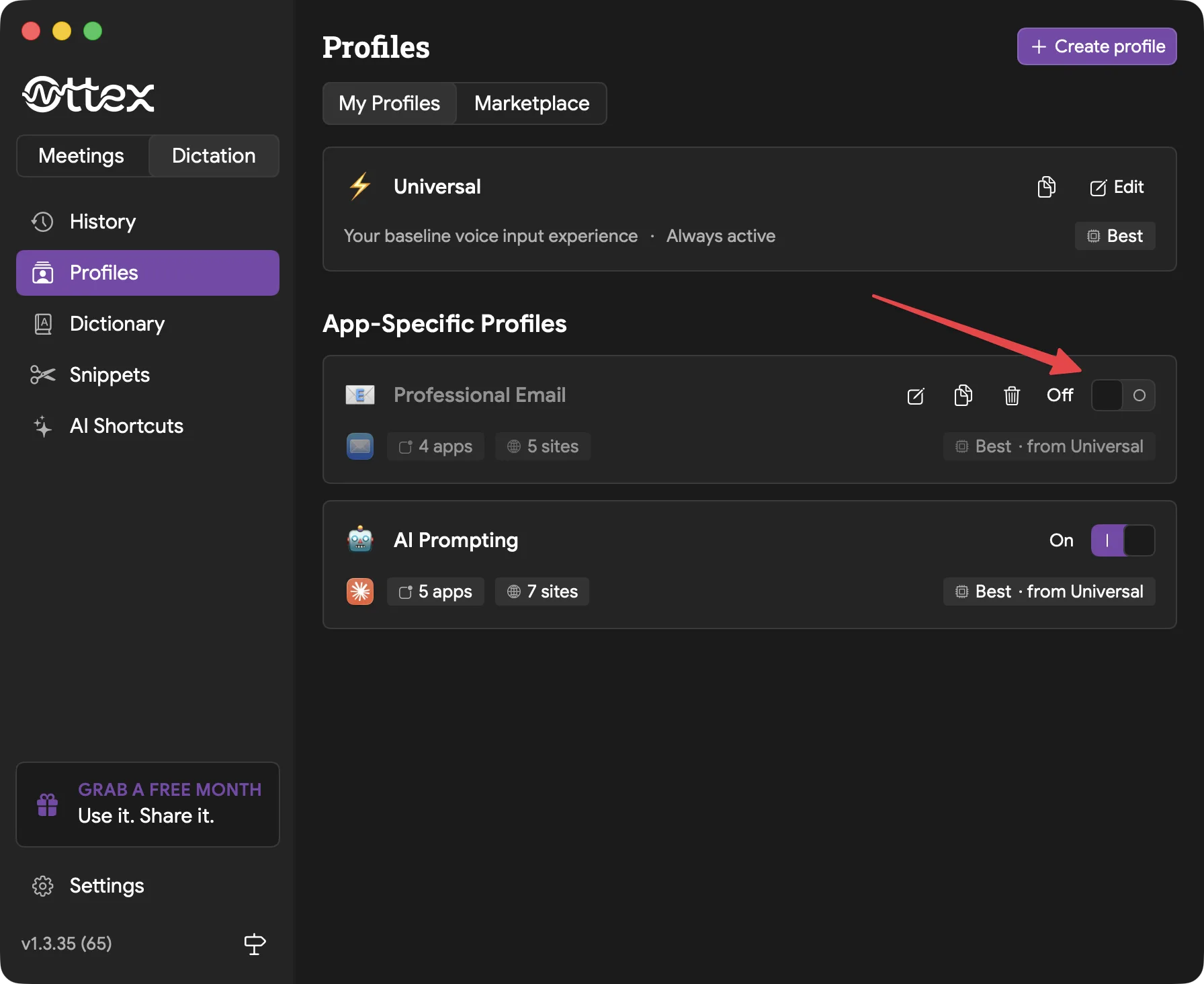
Enabling and Disabling Profiles
Each profile (except Default) has an on/off toggle. When you disable a profile, its apps fall back to the Default profile. This is useful when you want to temporarily stop using a profile without deleting it.